OTP-Tool Documentation
Install, configure, and use the OTP-Tool.
downloadInstall
Linux / Ubuntu
This Guide shows step by step how to install the OTP-Tool on Ubuntu.
1
Clone the repository
git clone https://github.com/Migrim/OTP-Manager.git
2
Navigate to the project directory
cd OTP-Manager
3
Install dependencies
pip install -r requirements.txt
4
Run the application
python app.py
info
Tip: OTP-Tool works best installed on a Ubuntu Server either locally or as a VPS
downloadFirst Login / Setup
Keep this section short; link out to deeper guides later if you want.
1
Open the OTP-Tool
Open this URL in your Webbrowser
http://yourserver:7440
Default admin login:
admin
1234
warning
Change the admin password immediately after first login.
apartmentAdd a Company
1
Open the Companies page
Go to /companies and click the + Button in the bottom right corner
Fill the Fields:
| Row | Content | Needed |
|---|---|---|
| Copany Name | Friendly Name of your Company | Yes |
| Kundennummer | Customer Identification number | No |
| Password | Not implemented in v2.1 | No |
keyAdd Secrets
1
Open the Add page
Go to /add andfill the fields
| Row | Content | Needed |
|---|---|---|
| Name | Friendly Name - at least 3 caraters | Yes |
| The email address associated with this secret | No | |
| Secret | Valid Base32 secret A-Z 2-7 "=" allowed | Yes |
| OTP-Type | Only TOTP, HOTP will be implemeted later | Yes |
| Refresh Time | Only 30sec refresh time is supported at this time | Read Only |
| Company | The company under which this secret will be stored | Read Only |
Submit the Form with Add or Add + View the view the generated OTP-Code
database_searchSearch
You can search on any site for any Secret stored
info
Use ⌘ + K or ALT + K to search on any page
databaseDatabase
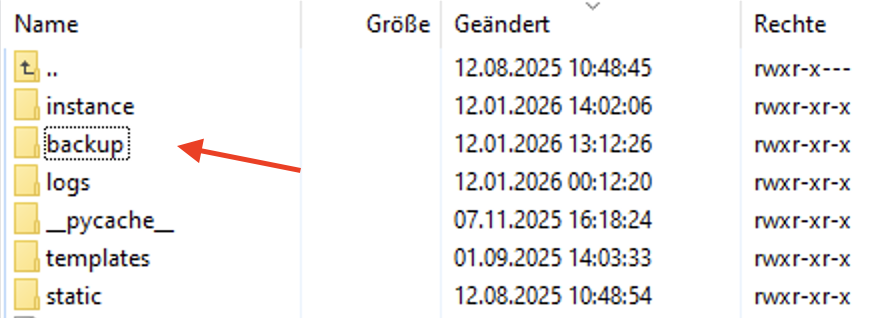
The SQLite database is located in the "instance" folder and is automatically backed up hourly as part of routine database integrity checks.
OTP-Tool-Path/instance/otp.db
Backup file location
Backups are created automatically every hour during integrity checks. Only the most recent three backups are kept. Customization options will be added in version 2.2.
info
Support for custom database paths will be added in version 2.2.